
An existing Payment can be edited, as per the Payment's status.
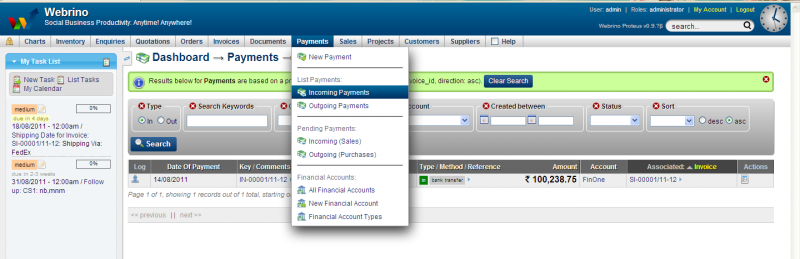
1. Mouse-Over on the Payments Menu
2. From List Payements section, select Incoming or Outgoing Payments
3. All the available payments of the selected category gets listed in the next window
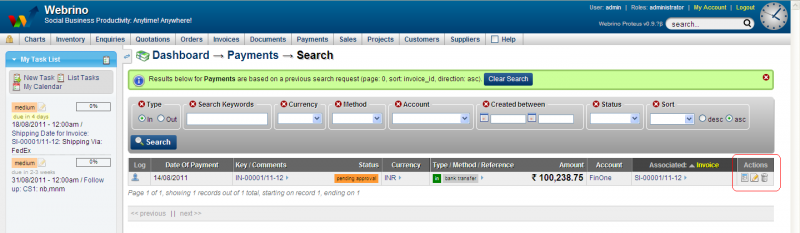
4. Select the payment which needs to be edited, by clicking the View icon of the Actions button
Note: if the payment is pending approval or is incomplete the Actions colums would also show Edit and Delete buttons)
5. Next window brings you to the Add Payment window to update the status to Approved or one of the options from drop down.
6. Click Submit
alternatively
7. If the Payment shows approved in the list, as an administrator or a user with appropriate permissions/role you could mark it Incomplete, Rejected or Pending approval on the next window
8. The unapproved/pending Payment can also be deleted