
Users and Teams are another very important part of any Organization
For Creating New Users
- On the Dashboard, click or mouse over on the Admin Menu (Golden lock)
- Navigate to Users & Roles
- A sub-menu pops on right hand side
- Select Administer Users
- A new window with two tabs - List and Add User opens up
- List tab shows all the existing users with options to filter the list; a fresh instance of dashboard would have the two system level users, which cannot be edited
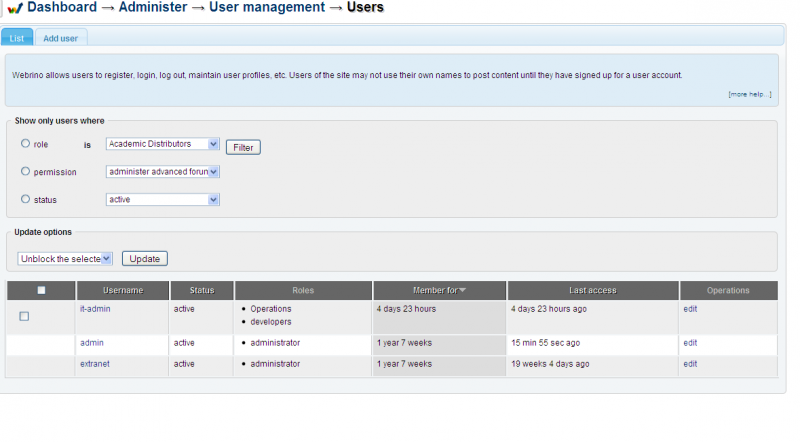
On this window:
- Click on Add User Tab
- This opens up new editable window to add new users to the database
- Enter Username, Email, Password Note: Users' e-mail addresses and usernames must be unique.
- Select Status (Active or Blocked)
- Select one or many Roles for this user
- Click the Check box if you wish to Notify the User of Account Creation
- Click New User Account
Note: Only users created by you would have the select option (the check box at the first column) active and not the system users
You could quick select one or many users and assign them roles, block or activate them from the above Update Options